







Collect the Spectacular. Introducing Super Stickers: Spectacular Series
The next chapter in the VeeFriends Super Stickers series has arrived. Released in August 2025, Super Stickers: Manga Series featured a…
The first step in getting your VeeCon 2024 NFT ticket is making sure you're set up with a digital wallet. A great option is by setting up a Coinbase Wallet where you can securely manage your crypto assets and seamlessly access your VeeCon tickets. In this guide, we'll walk you through the steps on how to set up a digital wallet through Coinbase, ensuring you're ready for a smooth and enjoyable experience when securing your ticket to the event. Whether you're new to digital wallets or looking to refresh your knowledge, this step-by-step tutorial will help you get started quickly.
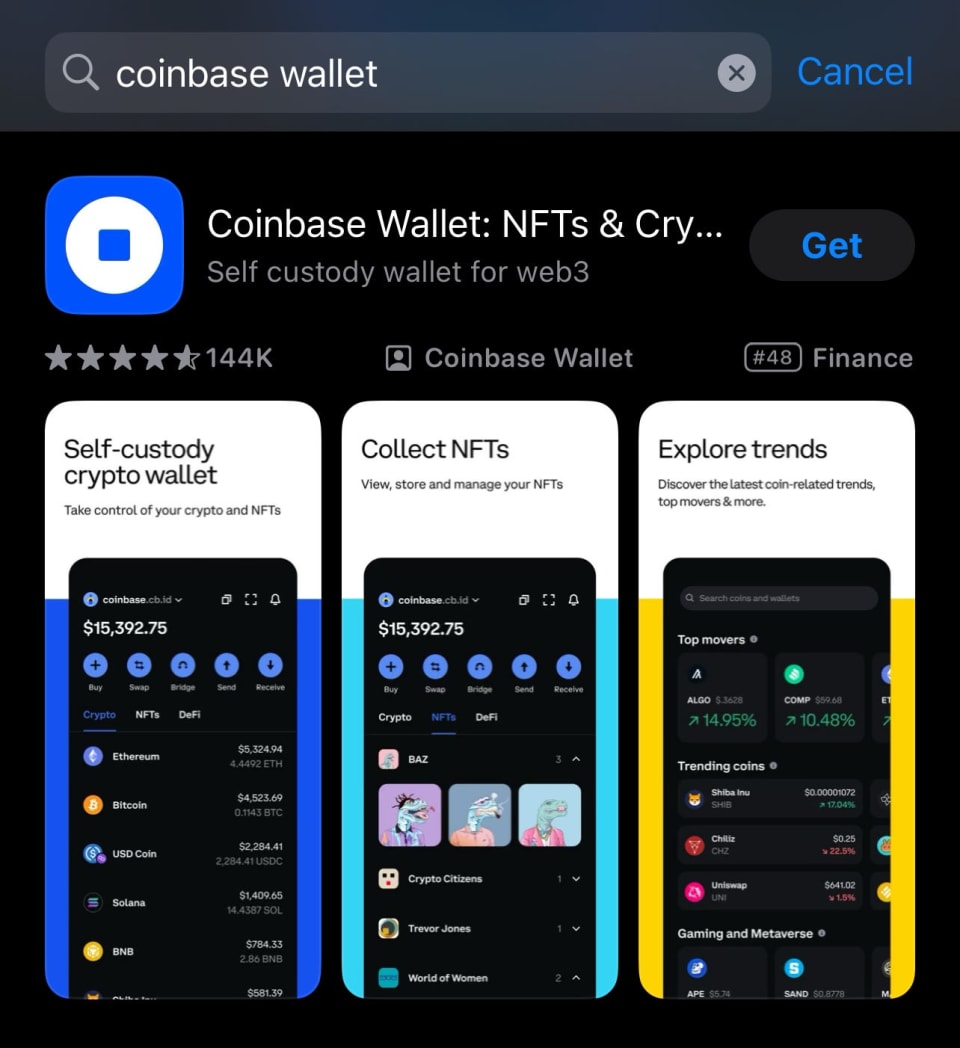
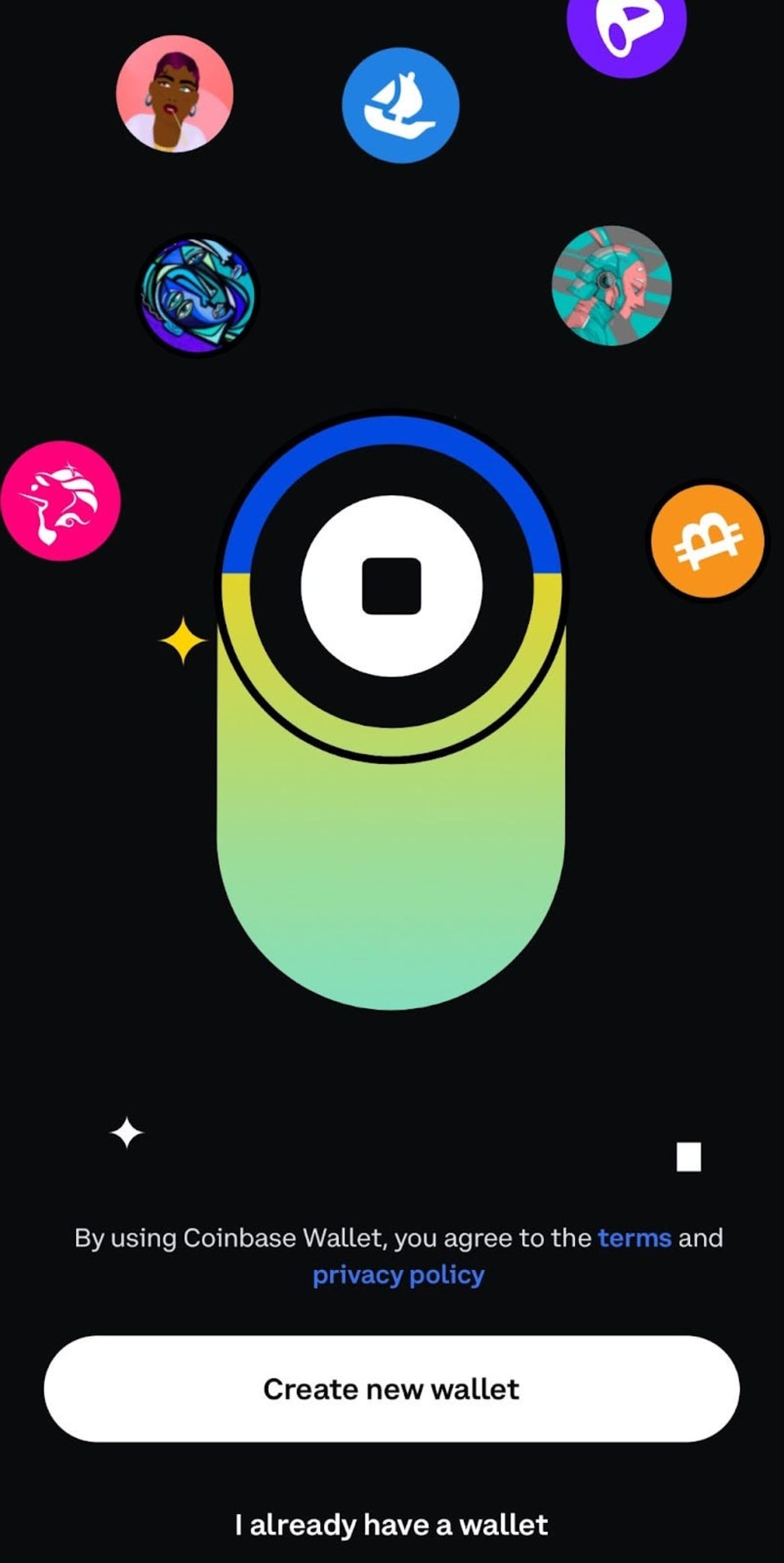
Review and Accept Policies: Open the Coinbase Wallet app. Review and accept the Privacy Policy and Terms of Service.
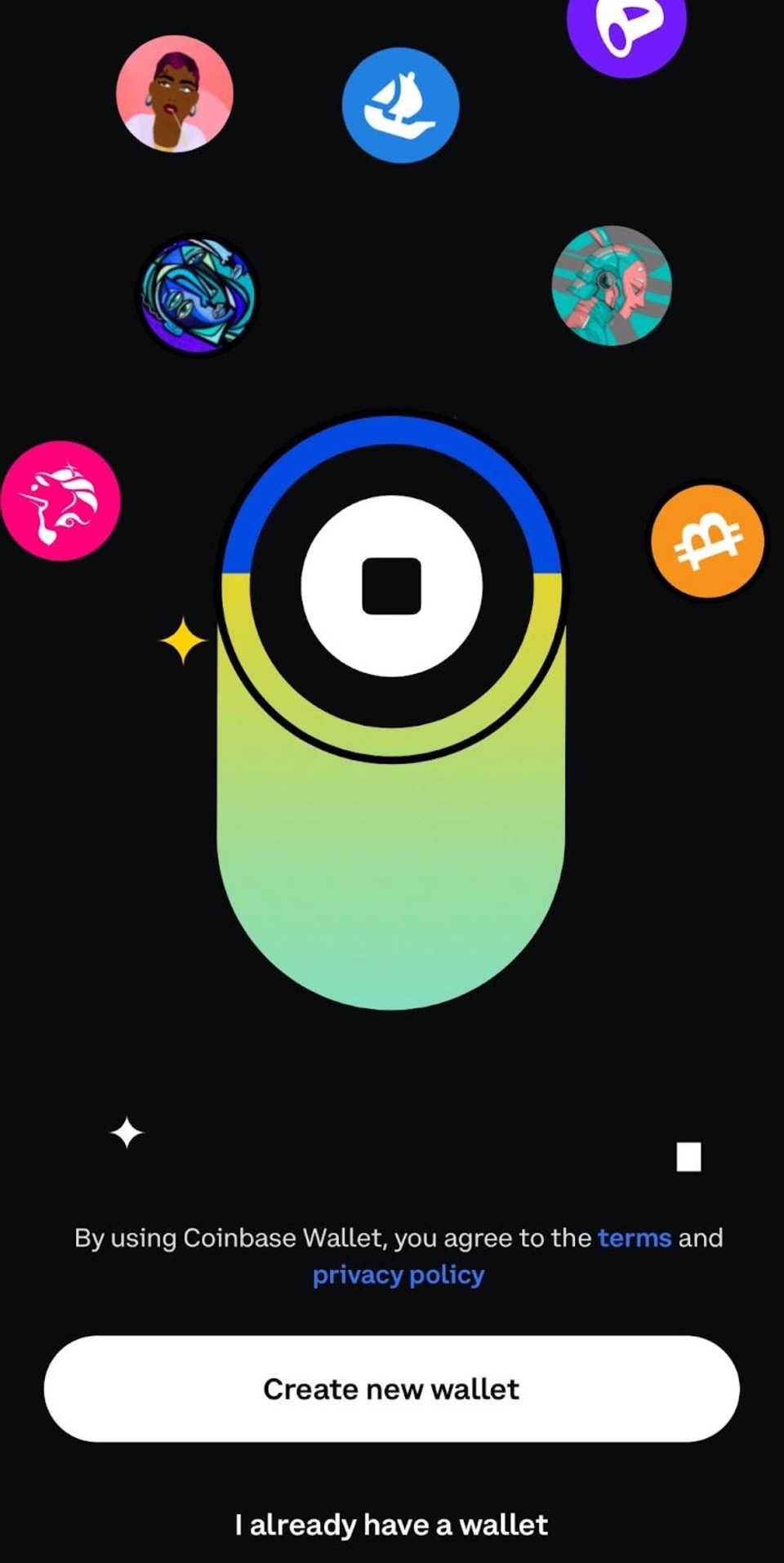
Create a New Wallet: Select "Create new wallet."
Claim Your Username: Select "Claim my username." You also have the option to import your ENS name into Coinbase Wallet and use that as your username. If you want to claim the username later, select "Maybe later."
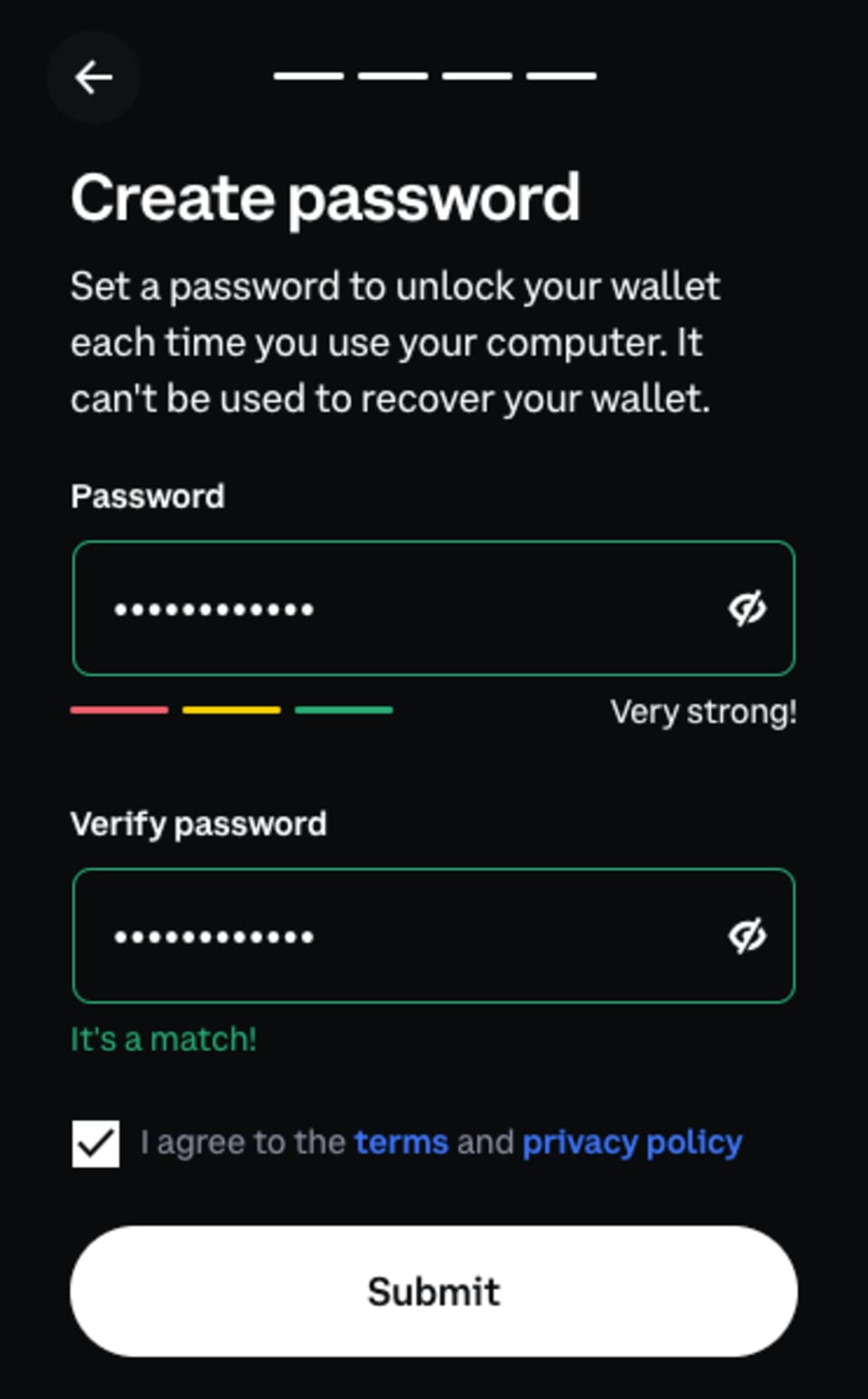
Create a Password: Set a password to unlock your wallet. This password will be used each time you access the wallet on your device.
Your new wallet is now created and ready to use.
Important:
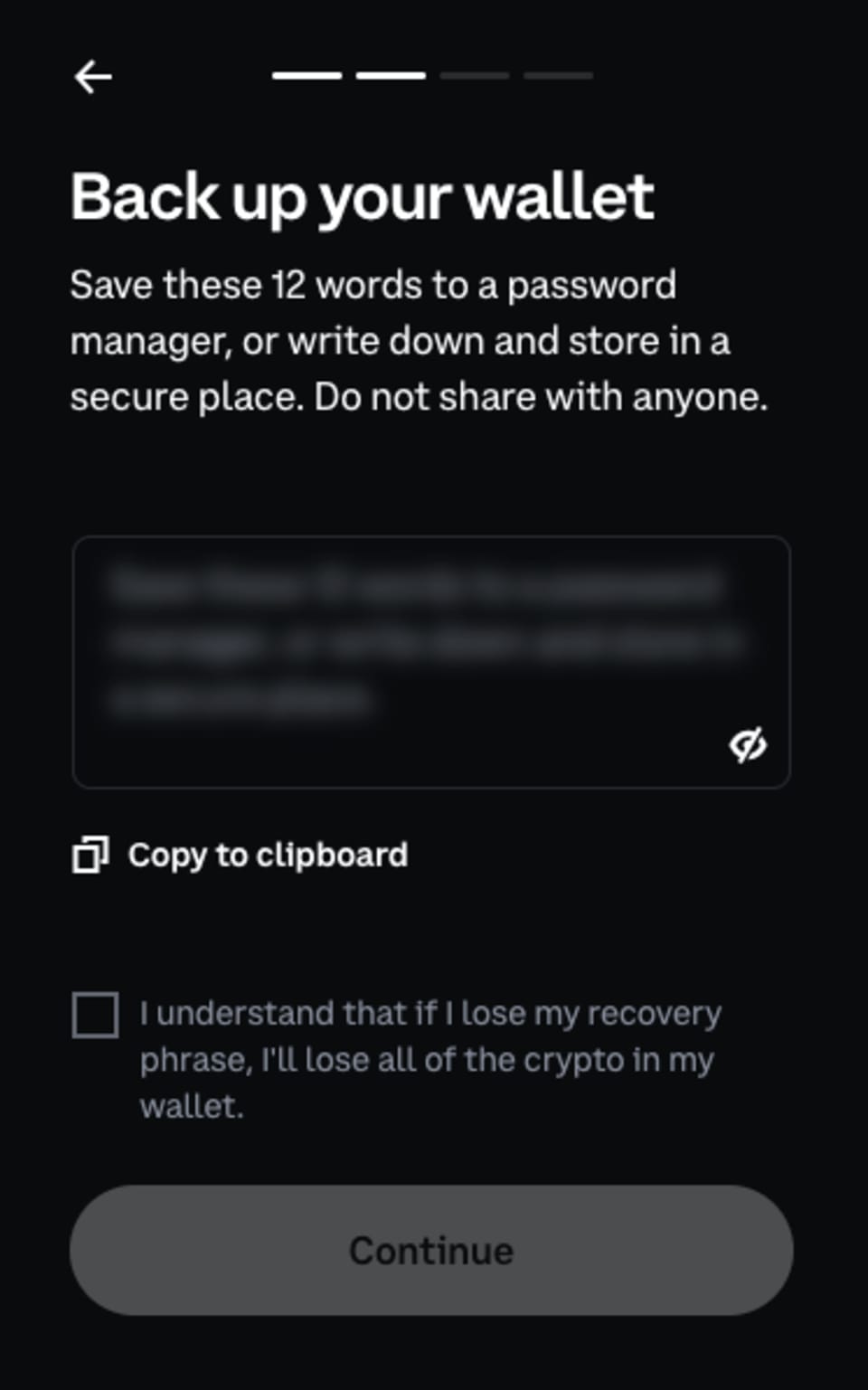
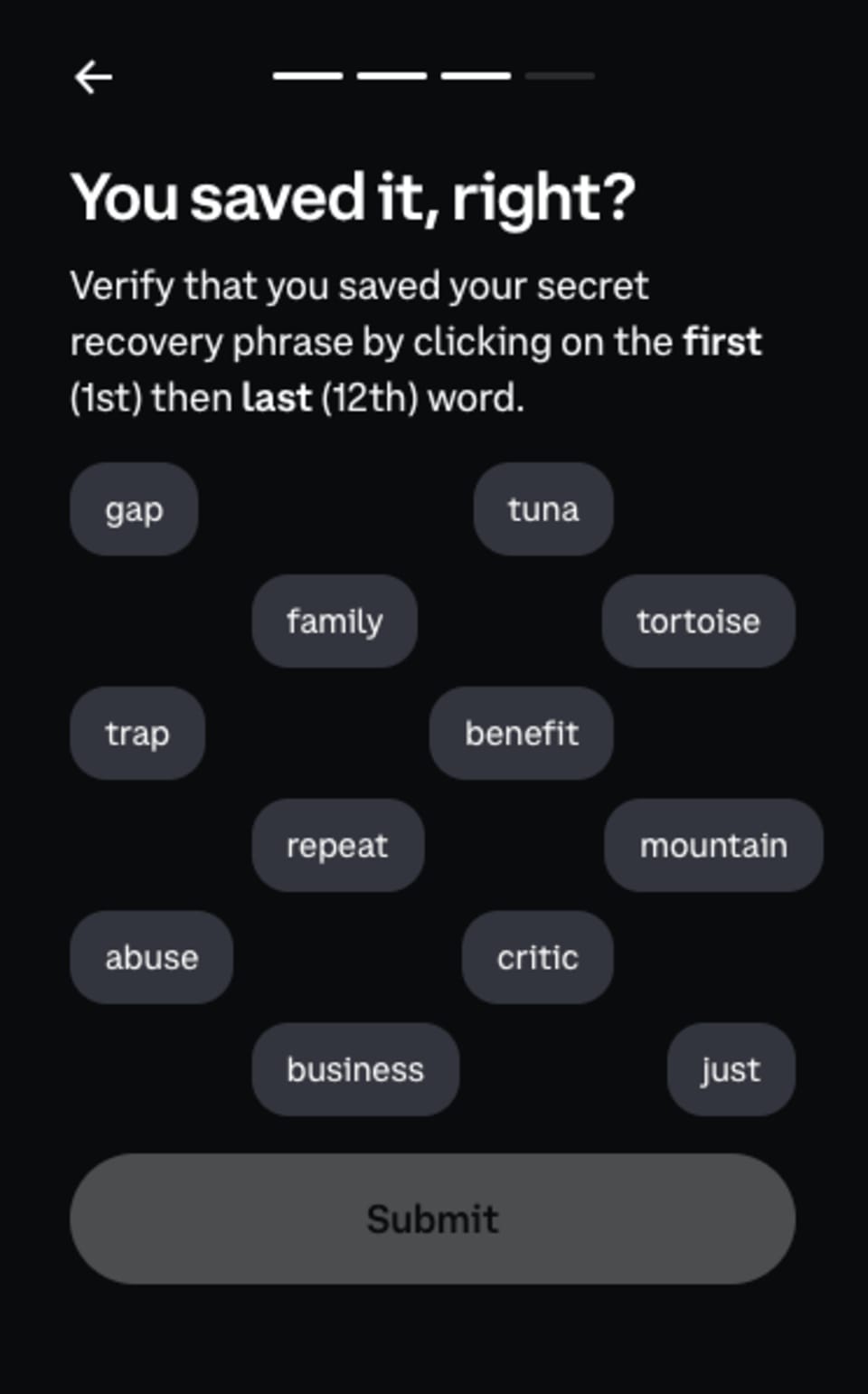
If you add funds to your wallet, you'll need to securely store your recovery phrase. You can view your recovery phrase by following the steps below. Write down your recovery phrase and keep it in a safe location or back it up to the cloud.
It is crucial to safely store and secure your recovery phrase. Losing your recovery phrase means losing access to your crypto and digital assets.
Open the Coinbase Wallet Mobile App: Launch the Coinbase Wallet app on your mobile device.
Navigate to Security Settings: From the main menu, go to the "Settings" tab. Select "Security," then choose "Backups."
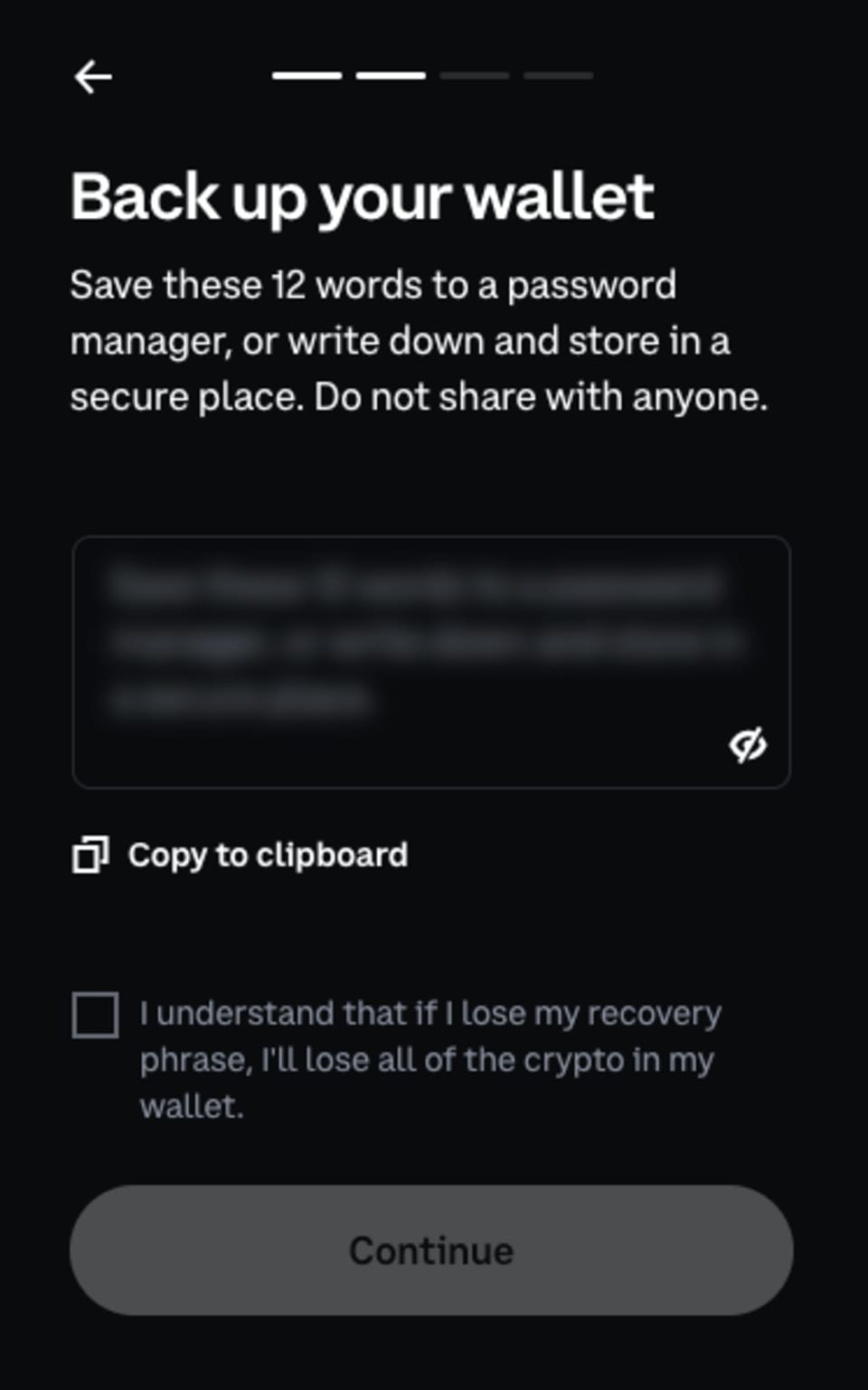
Manually (RECOMENDED):
Choose this option if you prefer a physical backup.
Your recovery phrase will be displayed. Write down your recovery phrase exactly as it appears and store it in a safe location.
Store the written phrase in a secure location, ensuring the order and spelling are correct.
iCloud/Google Drive:
Select this option if you prefer a cloud backup.
You will need to create a separate password to fully encrypt the backup. This password ensures only you can access the backup.
Keep this password secure. If you lose it, you won't be able to access your funds.
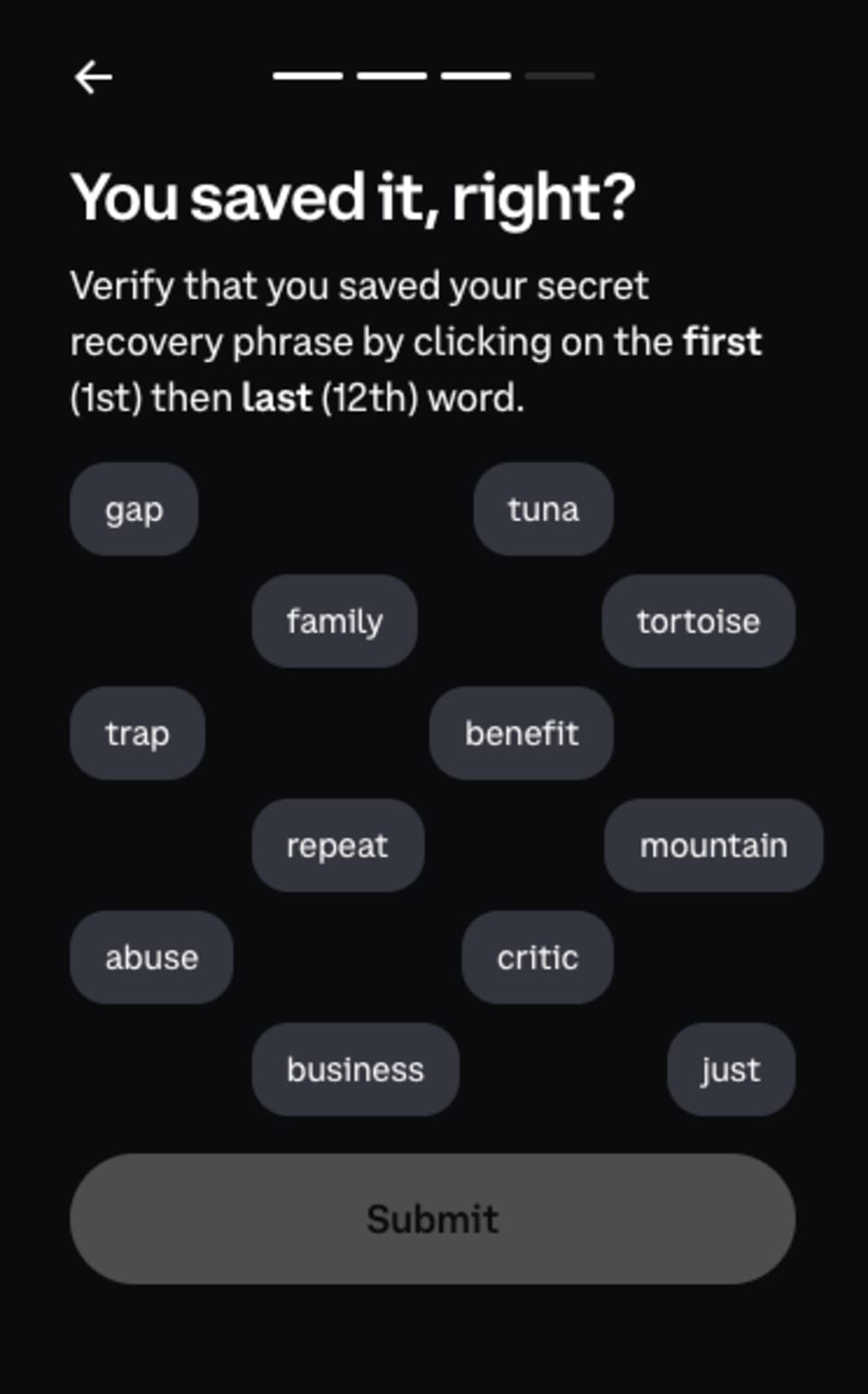
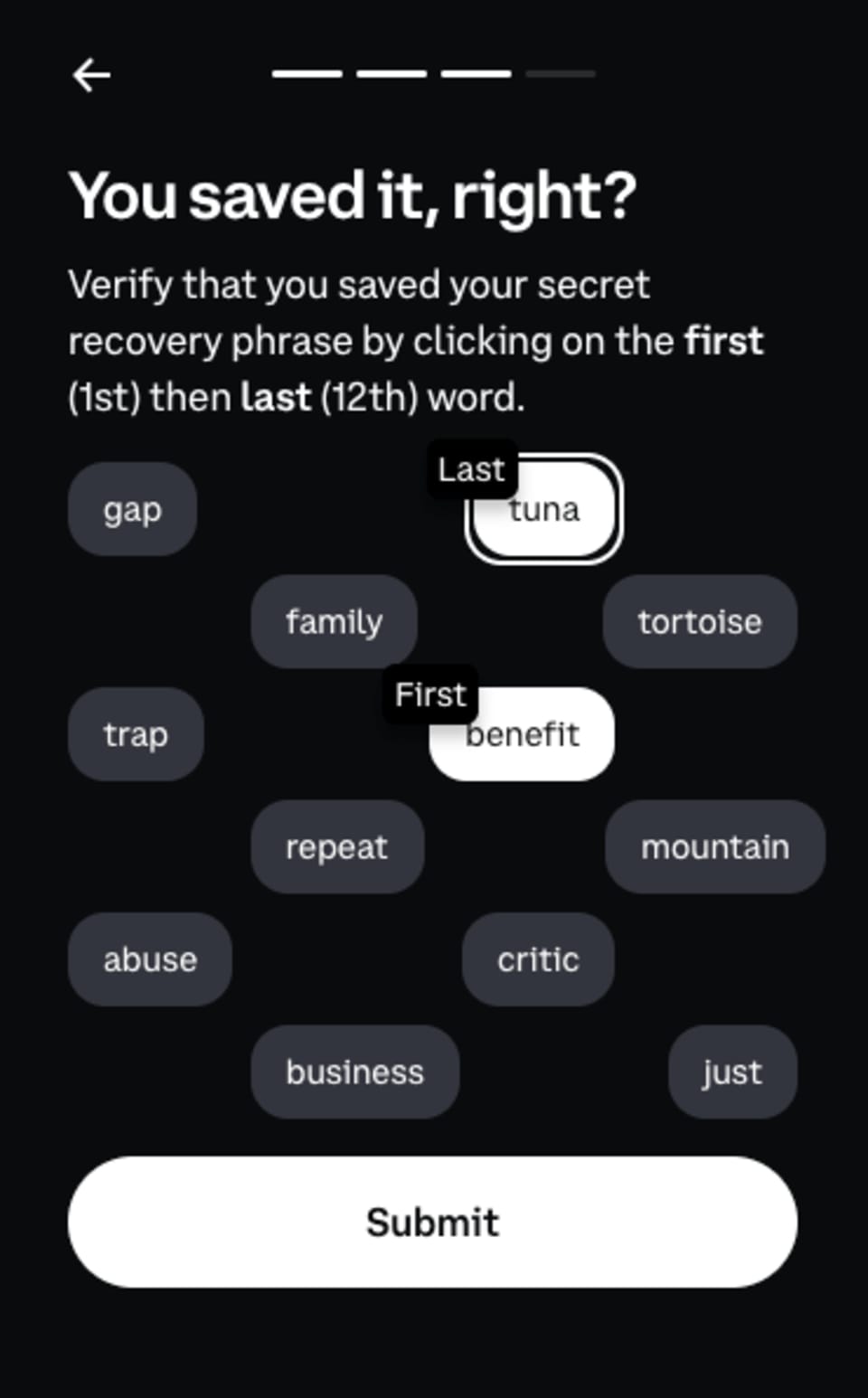
Access the Recovery Option: Long press on the Coinbase Wallet app icon on your device's home screen.
Select Recovery Option: Tap on "Recover your Wallet."
View Recovery Phrase: Select "Show Recovery Phrase."
Secure Your Recovery Phrase: Write down your recovery phrase exactly as it appears and store it in a safe location.
By following these steps, you can securely back up your recovery phrase and ensure you maintain access to your crypto and digital assets. If you have any questions or need further assistance please schedule time with VeeConcierge HERE
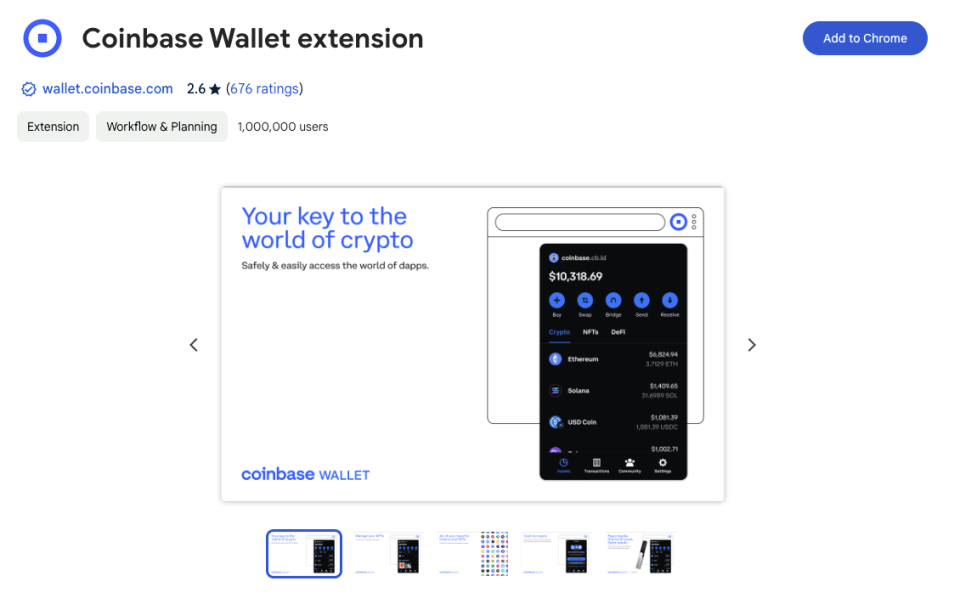
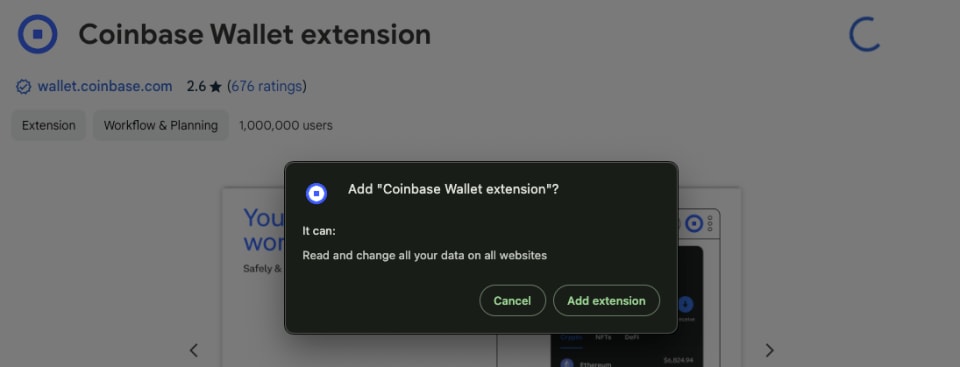
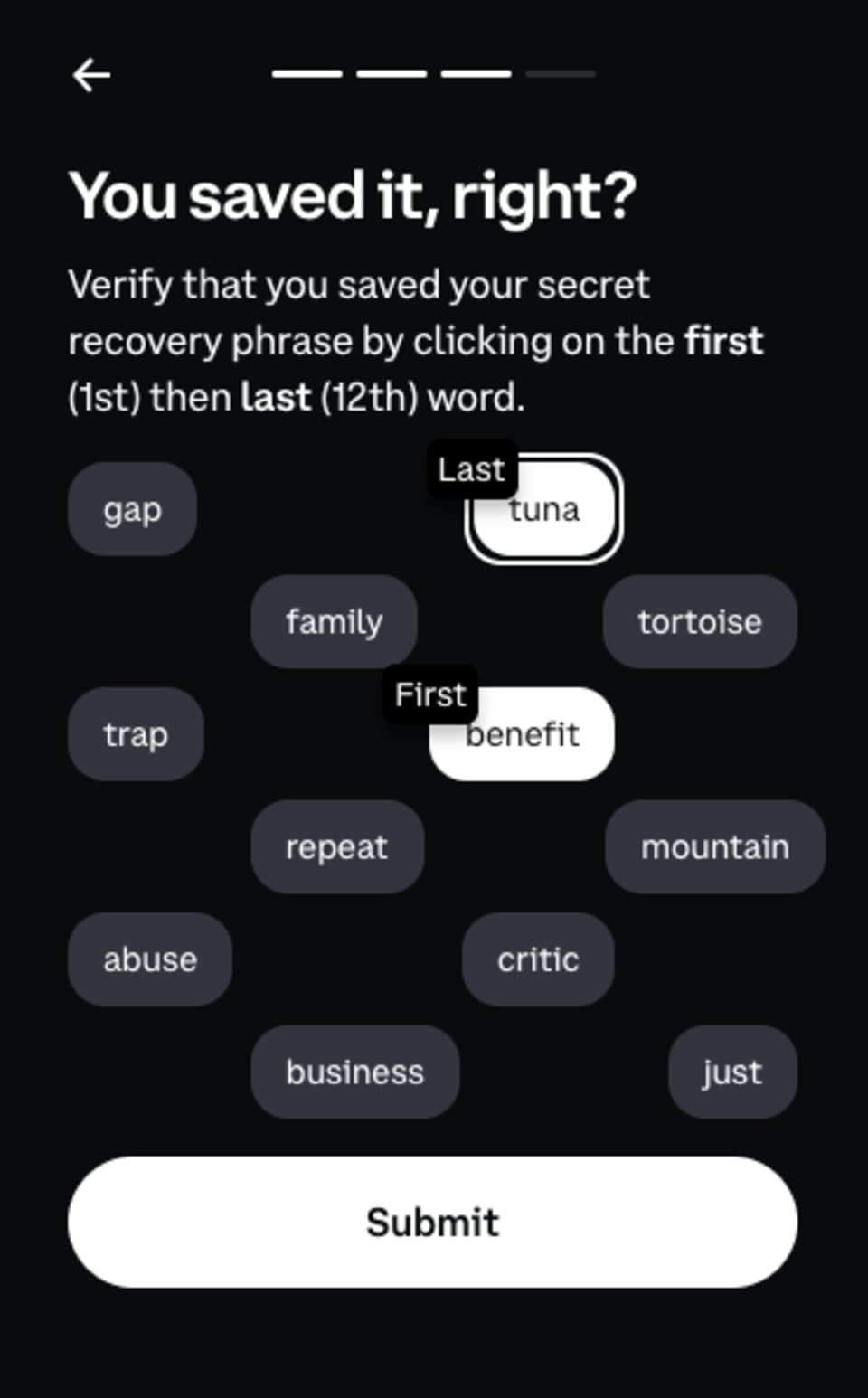
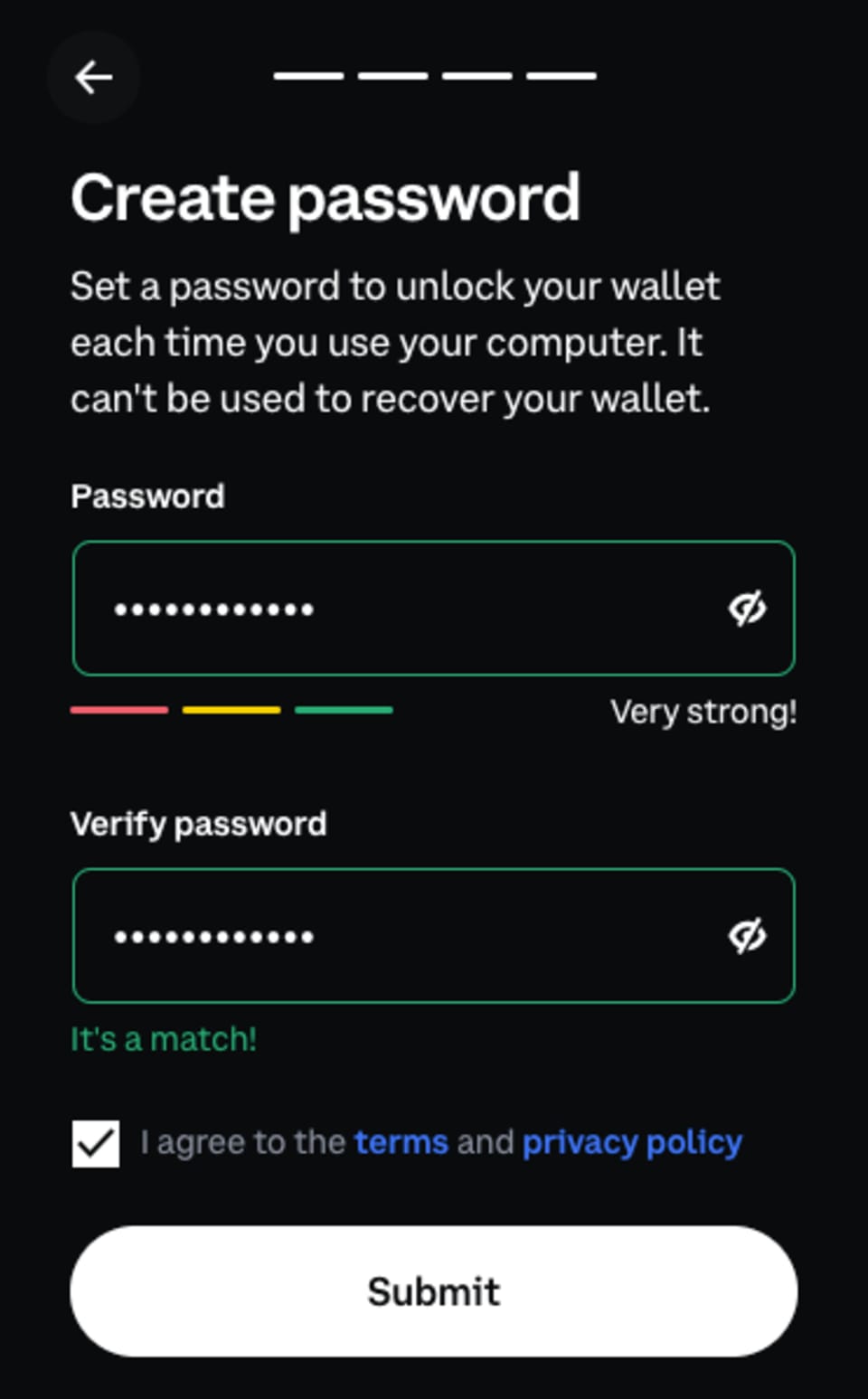
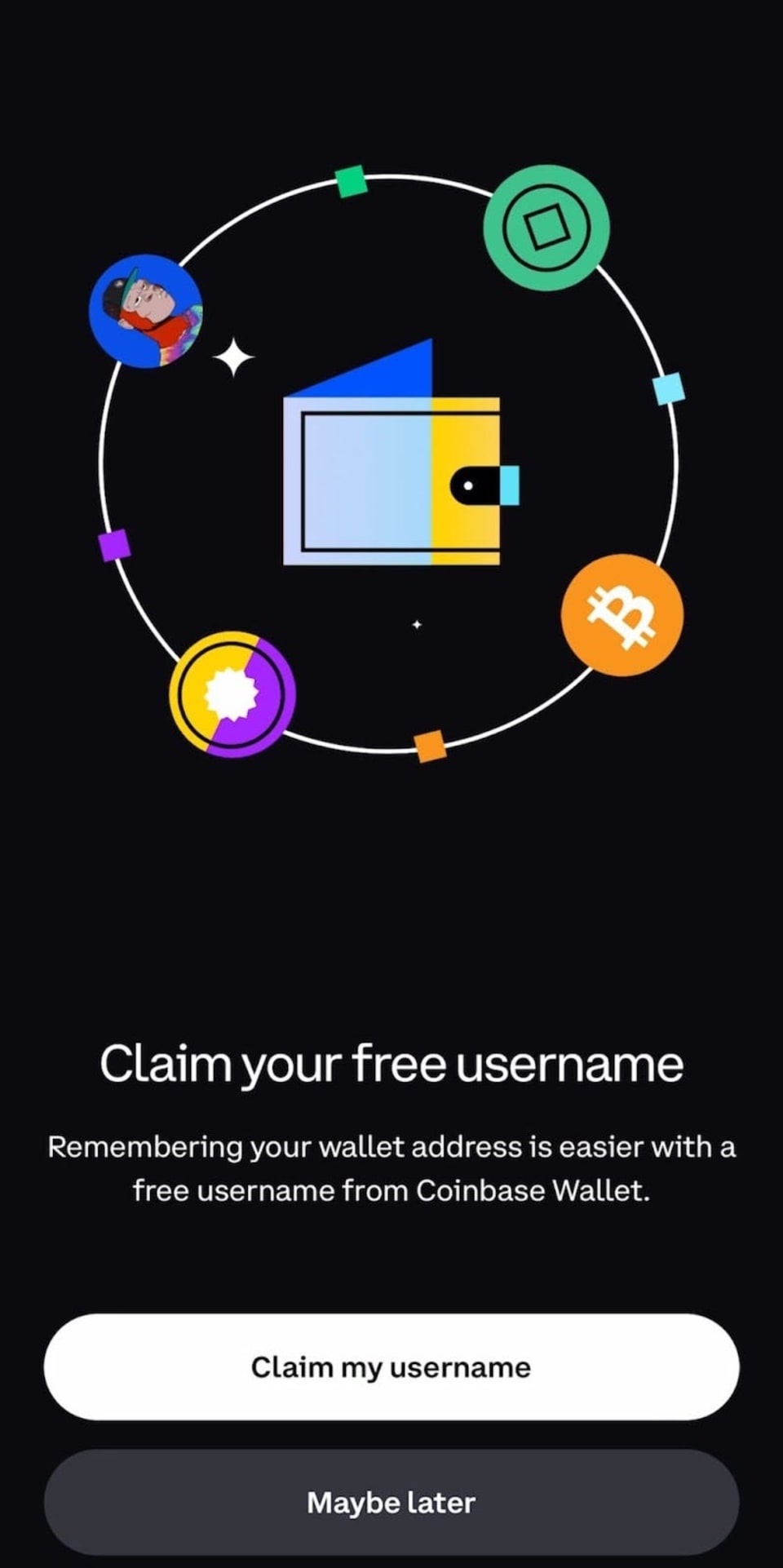
Congratulations! Your Coinbase Wallet extension is set up and ready to use.

You've set up your digital wallet — now it's time to buy your VeeCon 2024 ticket! This is your gateway to an incredible event filled with exclusive experiences and invaluable networking opportunities.
Official VeeCon 2024 ticket collection listing: https://opensea.io/collection/veecon-2024-tickets
For instructions on how to buy your VeeCon 2024 Ticket, visit this blog
Have more questions? Set up time with our VeeConcierge - VeeCon.co/ticketsupport
The next chapter in the VeeFriends Super Stickers series has arrived. Released in August 2025, Super Stickers: Manga Series featured a…

A new chapter awaits for BOOK GAMES tokens. Immutable X (IMX) recently sunset its original architecture and moved to a zkEVM model. As a…

We’re excited to introduce the VeeFriends Wallet powered by Privy: a secure, onchain wallet built directly into your VeeFriends account…

Be like Knowing Gnome - never miss exclusive VeeFriends updates, drops, and news! Get it all delivered straight to your phone by email and text!